Map a landscape
Lay out your business capabilities, and the applications, data, and teams behind them, as one map you can colour and filter.
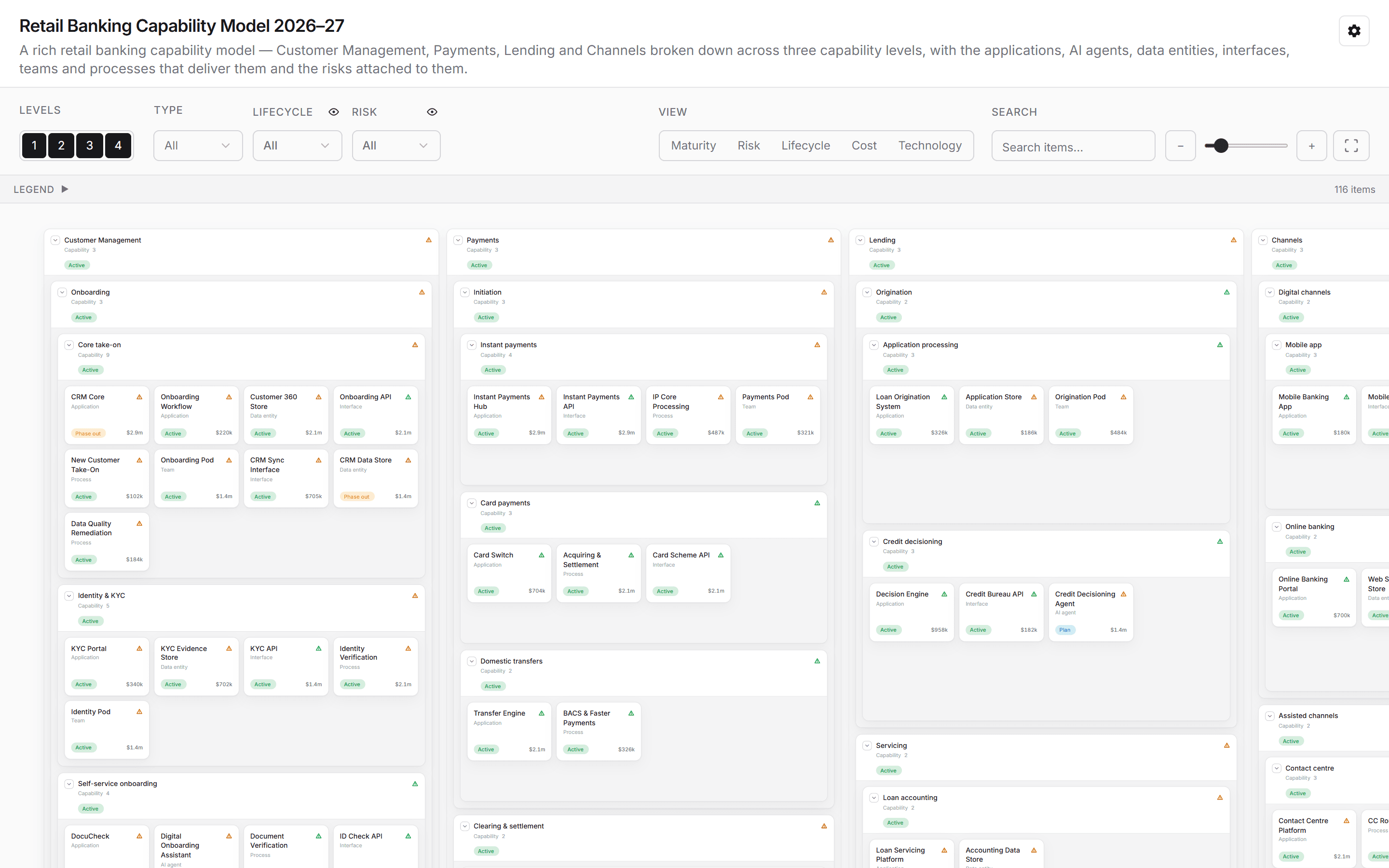
The Landscape draws your business capability model as a map: business domains broken down into capabilities, with the applications, AI agents, data entities, interfaces, processes, and teams that deliver each one. Colour it by maturity, risk, lifecycle, or cost, and the hotspots stand out at a glance.
Get a landscape
- In a chat, ask for the map you need: "Map our retail banking capabilities with the applications behind them, coloured by risk." Connect your EA repository first, such as SAP LeanIX or Ardoq.
- Review it on the Stage, then steer: "Only show the Payments domain", "Colour by lifecycle", "Which capabilities have no strategic application?"
- The landscape is saved under Artifacts.
An assessment can also lay its outcomes out as a landscape: choose Show on a map on its results.
To see the shape first, ask "Show a landscape map demo", or preview the Landscape app from Integrations → Apps.
Read and explore
- Levels shows or hides each level of the capability hierarchy.
- Type, Lifecycle, and Risk filter what is on the map. The eye icon beside a filter shows or hides that field on the items.
- View colours the map by one measure, such as maturity, risk, lifecycle, cost, or technology.
- Search items finds an item by name.
- Zoom with the slider and the + and − buttons, drag to move around, and use Fit to center to see the whole map.
- Legend explains the colours and markers.
- Select an item to open its details.
- Clear resets the filters and the view.
See also: Trace a cascade · Charts and tables.