Agent harness
The controlled loop every chat runs on, and the organization-wide settings that govern it.
The agent harness is the loop every Studio chat and workbench runs on. Transformation questions, such as what a retirement breaks, how to sequence a programme, or where the exposure sits, take many steps across live systems. The harness lets the agent plan, use tools, and keep going for as long as the work needs, while you can watch, steer, pause, and resume it, and check what it did.
What it does
- Plans first. The agent can draft its approach and wait for your approval before it acts. For long work it keeps a goal and reports progress against it.
- Keeps the session. You can reopen any chat and carry on. Earlier turns are summarised when a long chat needs room.
- Asks before it writes. Reading runs on its own. A change to a source system shows what it would send and waits for you, unless your admin allows that connection to write without asking.
- Asks you when it needs a person. A trade-off or a missing fact becomes a question in the chat, and the run waits for your answer.
- Delegates. An independent slice of work can go to a sub-agent, which reports back.
- Shows its work. Every tool call appears in the chat, so you can follow the analysis, not just the finished artifact.
Organization settings
Admins set the harness for the whole organization under Settings → Agent Harness. Members see the same settings, marked Set by your organization, but can't change them.
| Tab | What it controls |
|---|---|
| Instructions | The instructions the agent follows in every chat and workbench. They are part of Studio: you can read them here, but not change them. |
| Session | What Enter does while the agent works (Queue or Steer), output and thinking limits, plan mode and the /plan, /goal and /compact commands, and long-run settings such as the Goal check. |
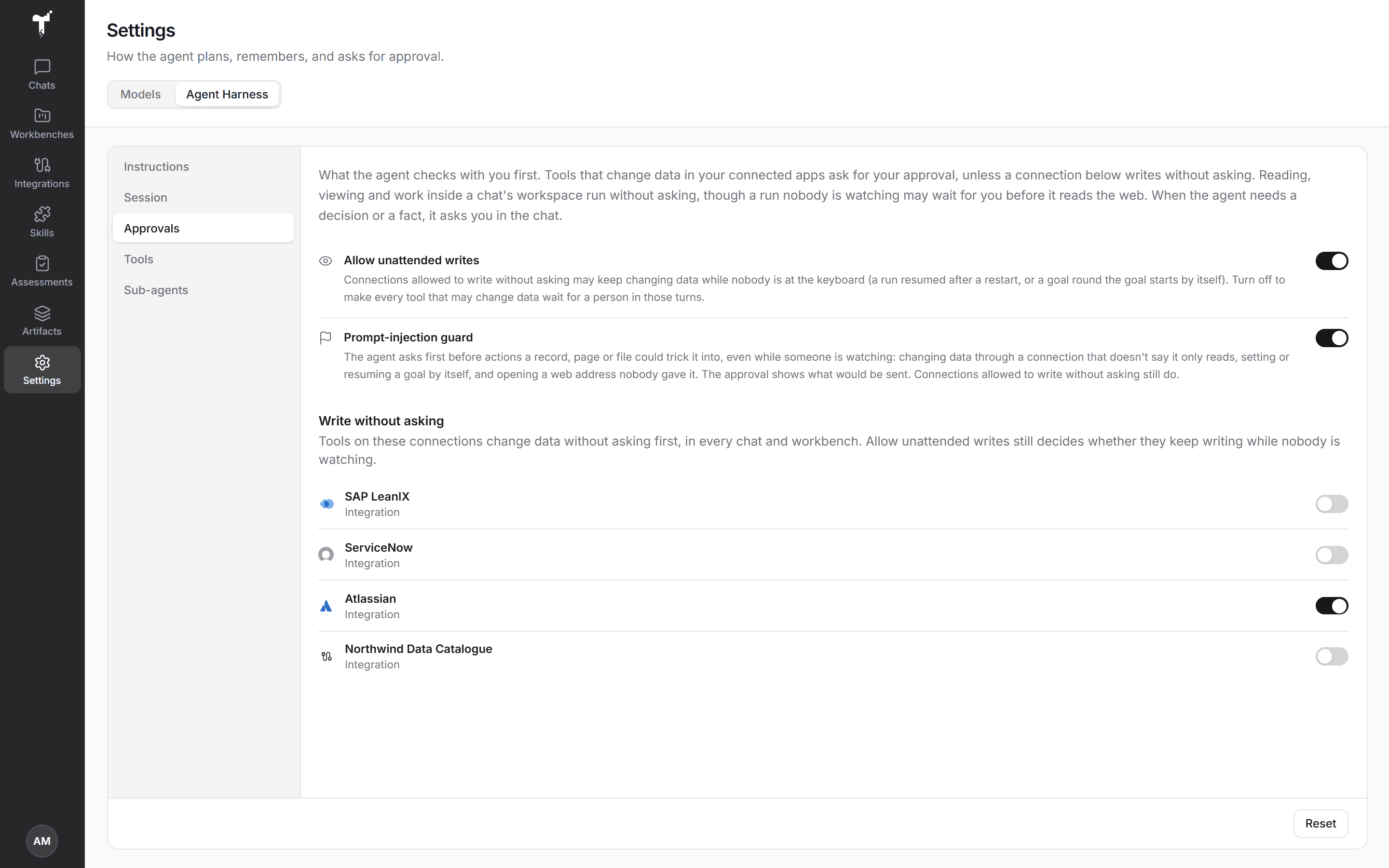
| Approvals | What the agent checks with you first. See Approvals. |
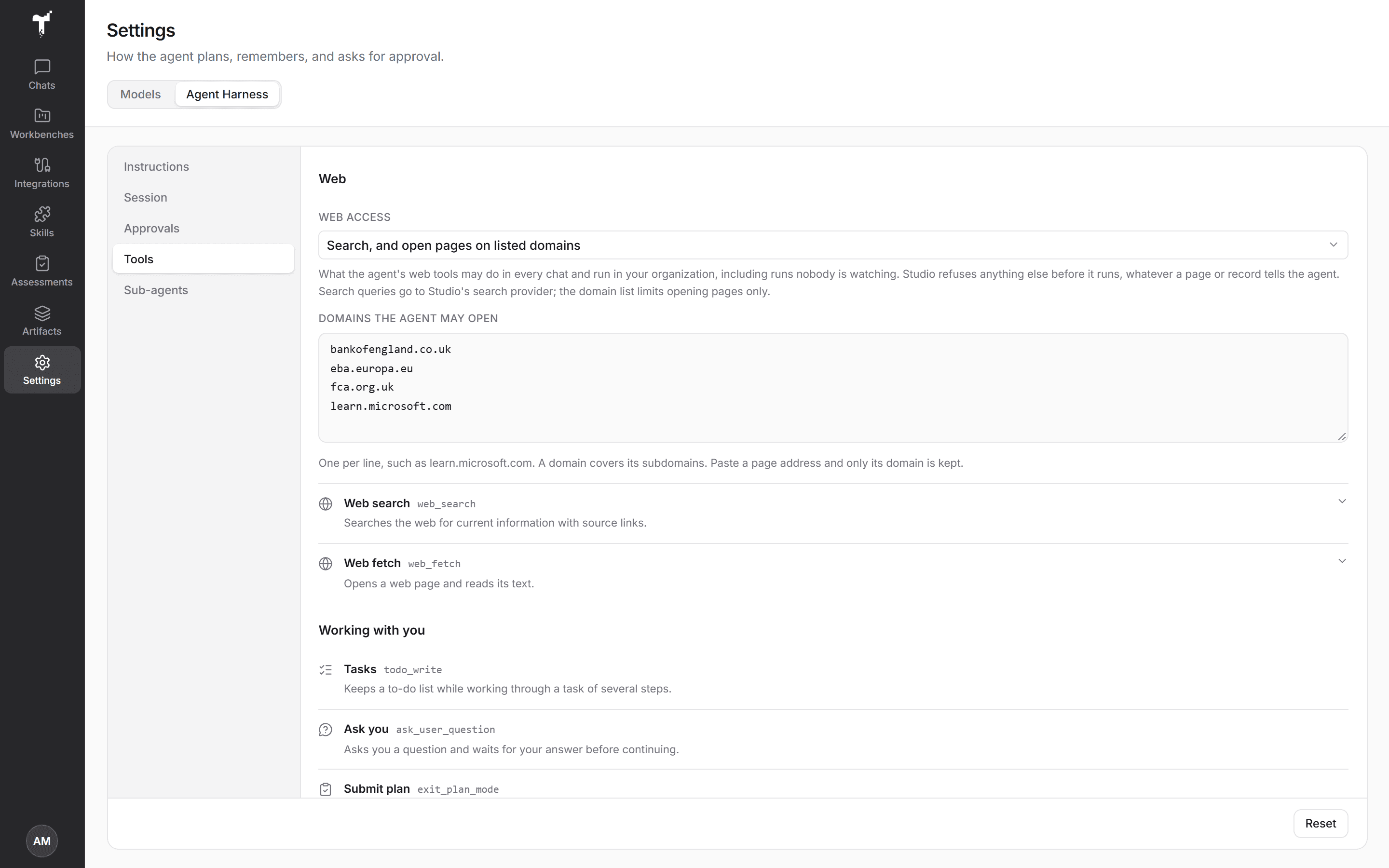
| Tools | The agent's tools by what they are for: the chat's Workspace, Web (with Web access), working with you, connected systems, the Decision brief and skills, and their limits. See Workspace and Web access. |
| Sub-agents | How the agent delegates, whether sub-agents run in the foreground or the background, and their background jobs. |
Choose Save changes to apply, or Reset to go back to Studio's defaults.
Approvals
- Approval ladder. Tools that change data in a connected system ask for approval first. Reading, viewing and work inside a chat's workspace run without asking.
- Write without asking. Tick the connections whose tools may change data without asking, in every chat and workbench.
- Allow unattended writes. Decides whether those connections may keep writing while nobody is at the keyboard, for example when a run resumes after a restart. Turn it off, and every change to source data in those turns waits for a person.
- Prompt-injection guard. On by default. The agent asks first before actions a record, page or file could trick it into, even while someone is watching: changing data through a connection that doesn't say it only reads, setting or resuming a goal by itself, and opening a web address nobody gave it. Connections allowed to write without asking still do.
Studio applies these rules itself. Nothing a page, a record, or the model says can bypass them. If a tool doesn't say whether it reads or writes, Studio treats it as a write.
Workspace
Under Tools → Workspace, on by default, each chat gets its own computer with files that last the whole chat. The agent brings data in from your connected systems and the files you add, works on it with commands and scripts, and publishes the files and pages it builds. A document you add arrives as its text, page by page, so the agent can quote and cite it. Person and email fields in data it brings in are masked. The workspace has no internet and holds no passwords or keys, and it is deleted 7 days after its last use. Sub-agents work in the same workspace. The row shows this month's sandbox hours.
Web access
The agent can search the web and open pages when a question needs public context. Under Tools → Web access, choose one of:
- Search, and open any page (the default)
- Search, and open pages on listed domains, with the list under Domains the agent may open
- Search only
- Off
Studio refuses any other web call before it runs, whatever a page or record tells the agent. Each organization can run up to 500 web searches a day.
Long runs
Long work carries on while you are away, and tells you what happened when you come back.
- Resume. If a run is interrupted by a restart, it picks up from where it left off.
- Run status. A banner above the composer says whether the run is still going, waiting for you, or paused. Runs in the chat header lists the chat's recent runs and how each ended: finished, goal complete, goal blocked, round limit reached, failed, cancelled, interrupted, or paused.
- Goal check. When the agent says a goal is complete, Studio can check it first: Run ledger requires the agent's notes to record what was done and the evidence (in a chat's workspace, its notes file); Run ledger and Judge also asks Judge whether the objective was met. It is on, with Run ledger, by default.
- Run emails. Each member chooses whether to get an email when long work finishes, waits for them, or stops. See Organization settings.
Tools from your connected systems are set up under Integrations. See MCP tools & visual apps. For what Studio enforces whatever the model does, see Security & data.