Assessments
Judge a slice of your estate against a standard your organization owns. Every record is settled, refused, or escalated, with the reason for each call.
An assessment reads a slice of your estate from a connected source, judges every record against a standard your organization owns, and leaves a result you can defend. Each record gets an answer and a confidence for every question you ask. Anything under its confidence floor is refused with a reason, never guessed.
Assessments are decided by Studio Judge, not a chat model. Judge answers the question you define (yes or no, a score, or one option from a set) and returns a confidence with every answer instead of writing prose. It runs on your organization's decision model.
Assessments are in Beta, and their behaviour may change.
Availability
Assessments are available on request. Once they are available to your organization, an admin turns them on under Organization settings → Features, and Assessments appears in the rail. An admin also connects a decision model under Settings → Models → Decision models. See Connect your AI.
The library
The library lists your assessments, with the sources each one reads and when it last changed. Create new assessment starts one; it is saved once you give it a name. Deleting an assessment keeps its run history and any map you made from it.
Six steps
An assessment walks six steps in order. Each step opens once the work before it is done.
- Intent: say what you want to assess, in one sentence.
- Source: your connected sources are ranked for that intent. Keep the Most suitable one or choose another. If nothing is connected, Connect a source first.
- Records: review the read plan, then Fetch the records. If the plan uses a tool that isn't marked read-only, you confirm it before anything is read. When a chat already read the list from the same source in the last day, the step offers it under Already read in a chat; choose Use these records to judge it as the chat read it, without reading it again. Choose the records in scope. Everything in scope is judged; everything you leave out is a decision you make on the record.
- Rubric: set the standard. See The rubric.
- Assessment: Run assessment and watch each record judged. See The run.
- Results: what settled, what needs review, and why. See The results.
The rubric
Studio drafts the rubric from your intent. It has two parts:
- Criteria: the questions every record is scored against.
- Decision: the one question every record ends with, such as keep, consolidate, retire, or reinvest.
Each question has a type (yes/no, a score on an ordered scale, or a choice of exactly one option) and a confidence floor. The defaults are 0.70 for criteria and 0.75 for the decision. Open a question's settings to edit its title, the criterion, the rule, and the floor, or to delete it. The decision question can't be deleted.
Rules code enforces first lists hard rules that decide an outcome before the model is asked, for example sending a record straight to a person.
When the rubric is right, Commit it. Each commit is saved as a version, and every run is judged against the version you committed.
The run
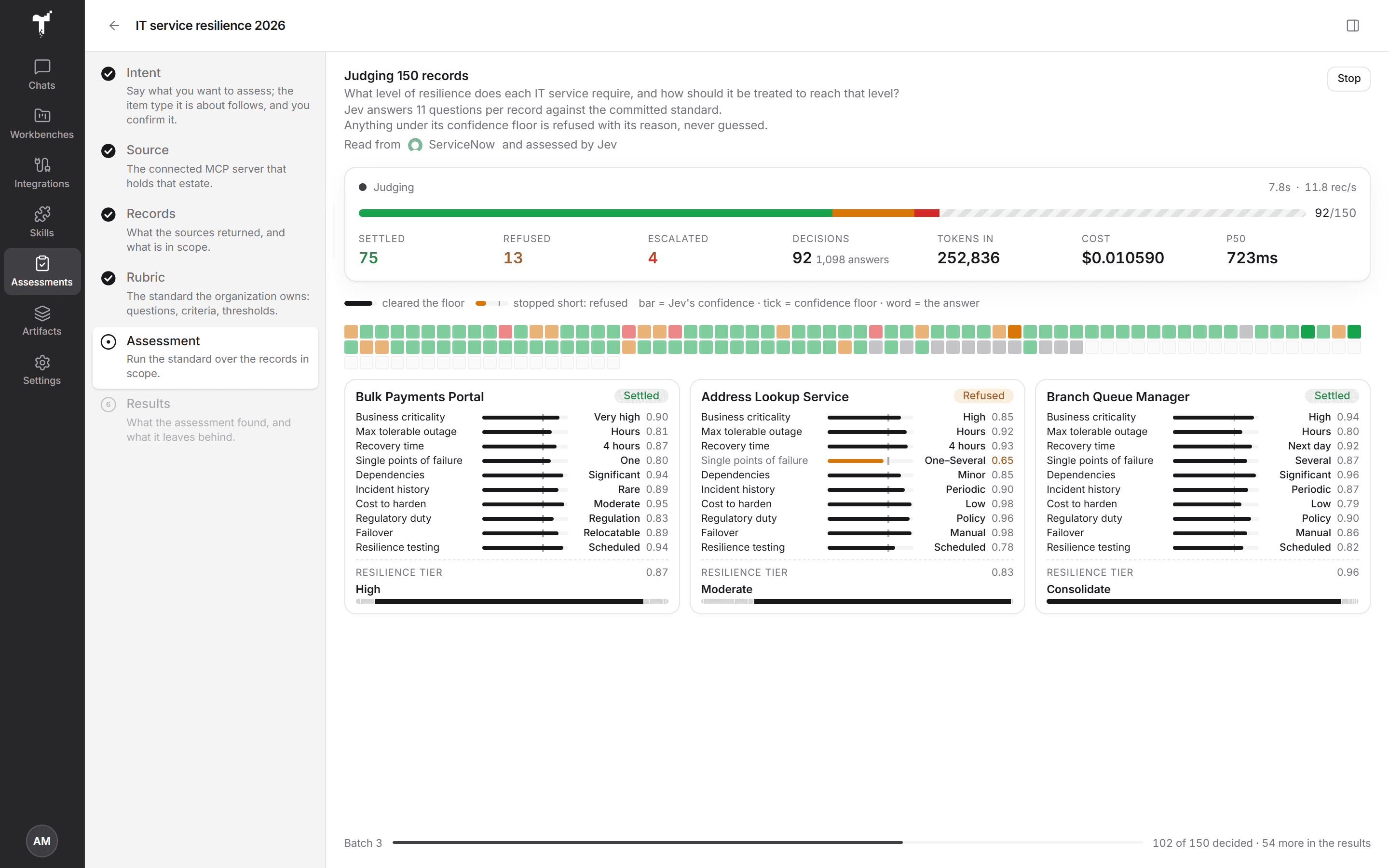
The run shows one card per record. Each card moves through Queued and Judging, then lands on its outcome:
- Settled: every question cleared its floor.
- Refused: a question fell under its floor. The record is refused with its reason, not guessed, and needs review.
- Escalated: a rule in your standard sent the record to a person, whatever the confidence.
On each card, the bar is the model's confidence, the tick is the floor, and the word is the answer. The decision also shows how the confidence spread across every option.
A stats bar sits above the run: its state, a track split into settled, refused, and escalated, and the readings Decisions, Tokens in, Cost, and p50. Every number comes from the provider, not an estimate. Large runs add a mosaic with one square per record, so the whole slice reads at a glance.
When the run completes, filter to All, Needs review, or Settled. Select a card to see its assessment next to the record it was read from.
The results
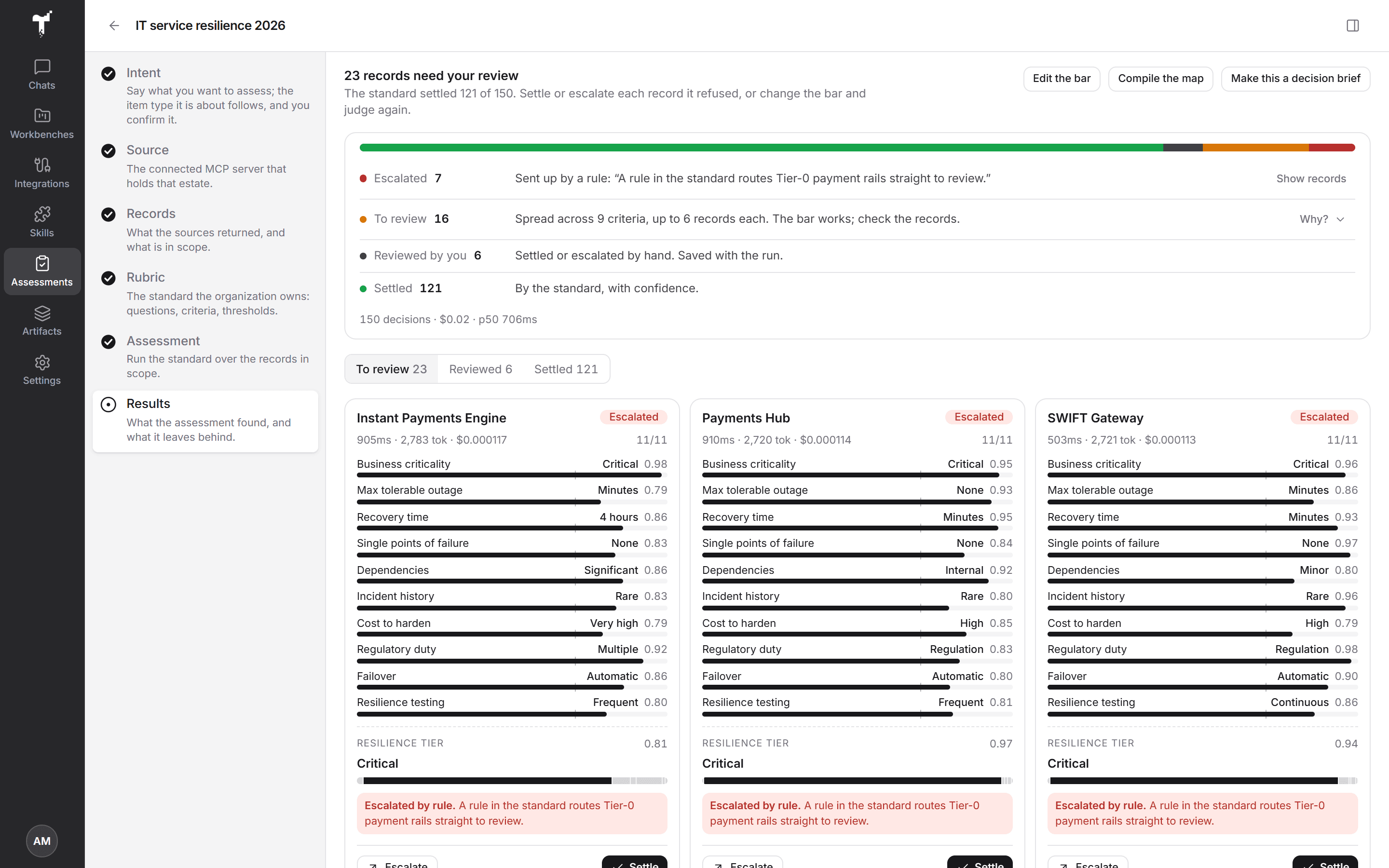
The results open on one summary card, with a row per outcome:
- Escalated: records a rule sent to a person, naming the rule.
- To review: records the standard refused, with where to start. Why? shows the criteria behind the refusals, each tagged with what it needs: Add data, Adjust the floor, Clarify the options, or Check the records.
- Reviewed by you: records you settled or escalated by hand.
- Settled: records the standard settled with confidence.
Open a refused record to see its reason, the confidence, and what was missing or weak. Settle it once you have checked it, or Escalate it to someone who can decide. Either can be undone.
Edit the bar takes you back to the rubric: change a question or a floor, then commit. Once your edits are committed, Re-ask in the header asks just the changed questions again of the records already judged, and keeps the run's other answers. The button says how many questions it will ask. The two versions are compared, so you can see what moved and why.
Once the run has finished, Show on a map lays the outcomes out as a landscape on the Stage, and Make this a decision brief turns the judged records into a Decision brief, with one option per decision and refused records held open.
Next: run a staged job in Workbenches, or find the map later under Artifacts.