Co-create with agents
Ask a decision question, watch the agent work, steer it, and keep what it draws.
In Studio, the agent works in the same place as you. It plans, reads your connected sources, asks when it needs you, and draws the answer on the Stage next to the chat. You can see each step it takes and redirect it at any point.
Start a chat
Choose New chat and type your question in the composer. A concrete decision works best: "Which applications should we retire in Payments next year, and what breaks if we do?"
The composer gives you:
- Plugins: switch on the connections and skills this chat may use. The Web search switch here applies to every chat in your browser.
- Starters: start from a skill's starter prompt. The skill is attached for you.
- The model picker: choose which of your organization's models answers.
- Commands: type
/for /plan (plan before acting), /goal (set a lasting goal), and /compact (summarise earlier turns so a long chat can keep going).
Press Ctrl+K (Cmd+K on a Mac) to search your chats, artifacts, connections, and skills.
Add files to a chat
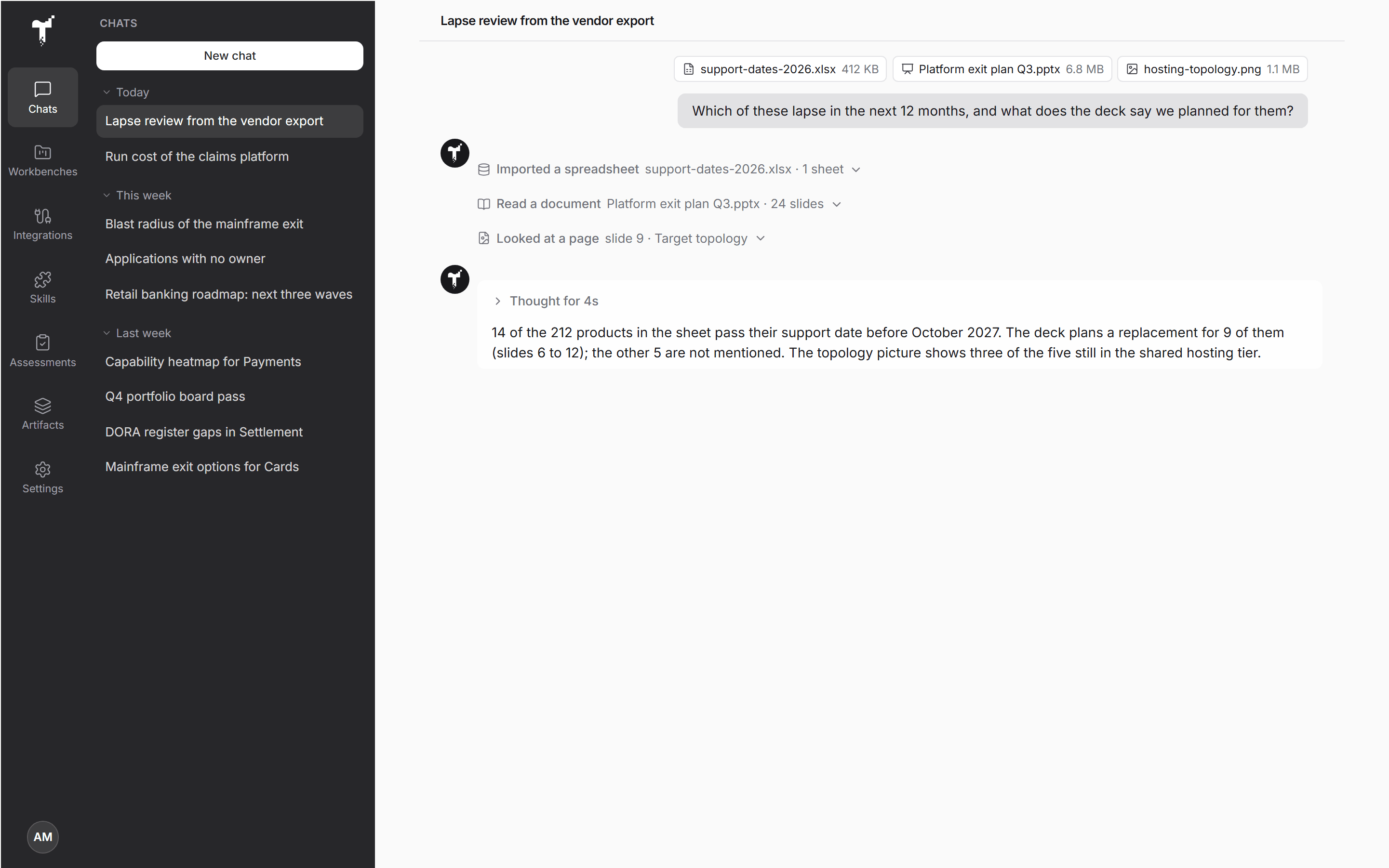
Not every estate lives in a connected system. Choose the paperclip in the composer to add files to a message, up to five at a time, then ask your question. Each file shows as a chip above your words.
| Kind | Files | What the agent does with it |
|---|---|---|
| Spreadsheet | CSV, Excel (.xlsx) | Reads the rows into data it searches, filters and totals in place, like a connected source. A Decision brief can verify its values against them. |
| Document | PDF, Word (.docx), PowerPoint (.pptx), text (.txt), Markdown (.md), JSON (.json) | Reads it page by page, searches it, and quotes it. Pictures inside a document or deck are read too. A brief verifies the quotes. A JSON file is read as text. |
| Picture | PNG, JPEG, WebP, GIF | Shows it to a model that reads images. See Connect your AI for the picture-reading model. |
Files can be up to 50 MB each, and pictures up to 3.5 MB. A scanned PDF with no text layer is refused; save a copy with recognised text first.
Files are kept only as long as the chat needs them: a file nobody read is deleted after a day, and a file the agent read is deleted shortly after it was read.
Watch it work
As the agent works, the chat shows each step:
- Thinking, then the tools it calls ("Ran 4 tools"). Open a row to see what it read.
- Tasks: a checklist the agent keeps for longer work, such as "Tasks · 2 of 5".
- Plan review: in plan mode the agent writes its plan first. Approve it, or Keep planning with your feedback.
- Artifact ready: choose Open on Stage to see what it drew.
Check an answer's sources
Under an answer the agent gave from your sources, a Source check line says how many of the answer's figures match a source record or document, and whether every record it cites was read. Everyone in the chat sees the same line.
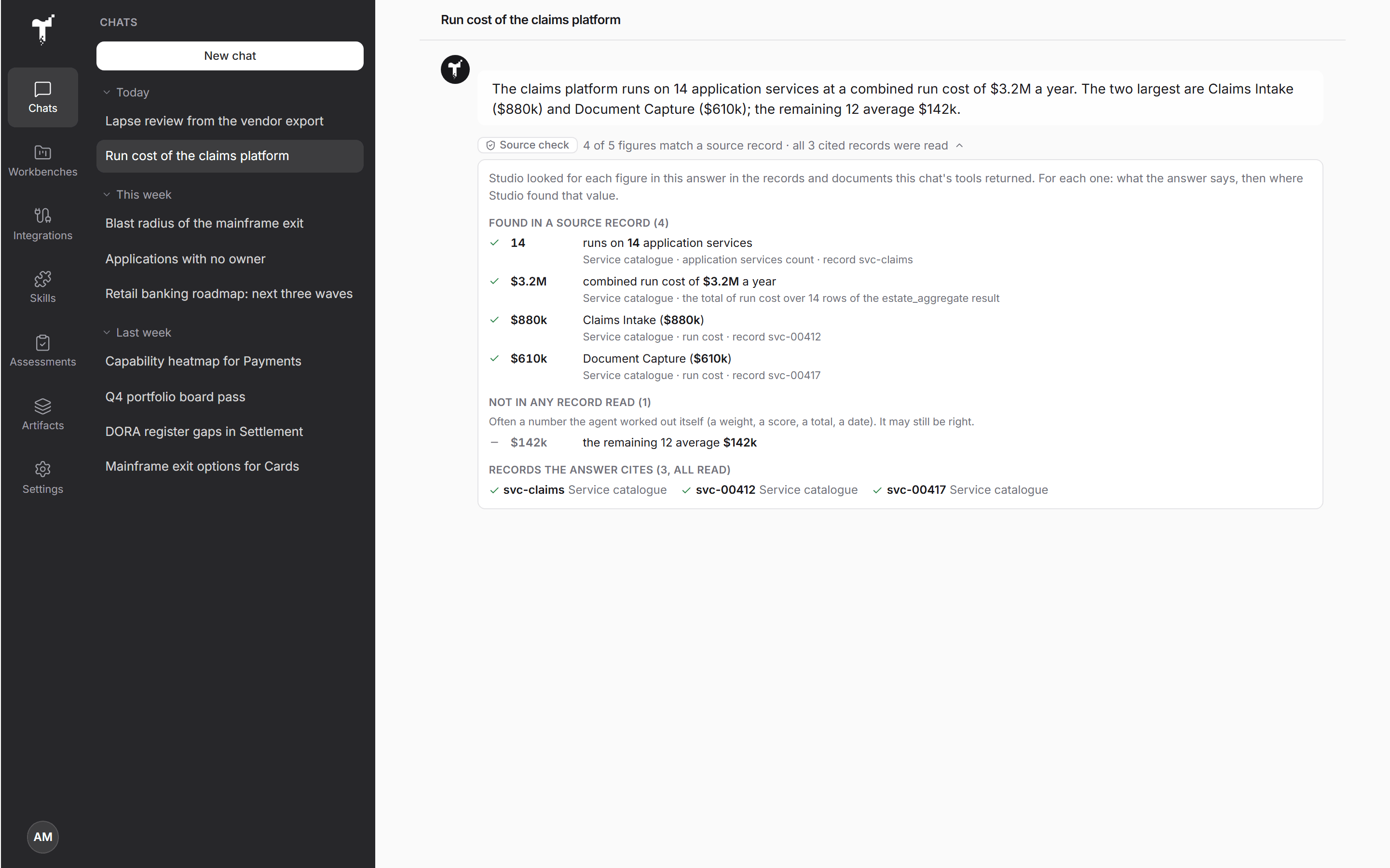
Open it to see each figure in the answer's own words and where Studio found that value: the system, the field and the record, or the document and its page. Figures Studio could not find are listed too. They are often numbers the agent worked out itself, such as a total or an average, and may still be right, but they are the ones to check first.
Approve changes
Reading runs on its own. Any change to a source system, such as updating an application's lifecycle in your EA repository, stops and asks first. The Tool approval card shows exactly what the call would send. Choose Approve or Reject.
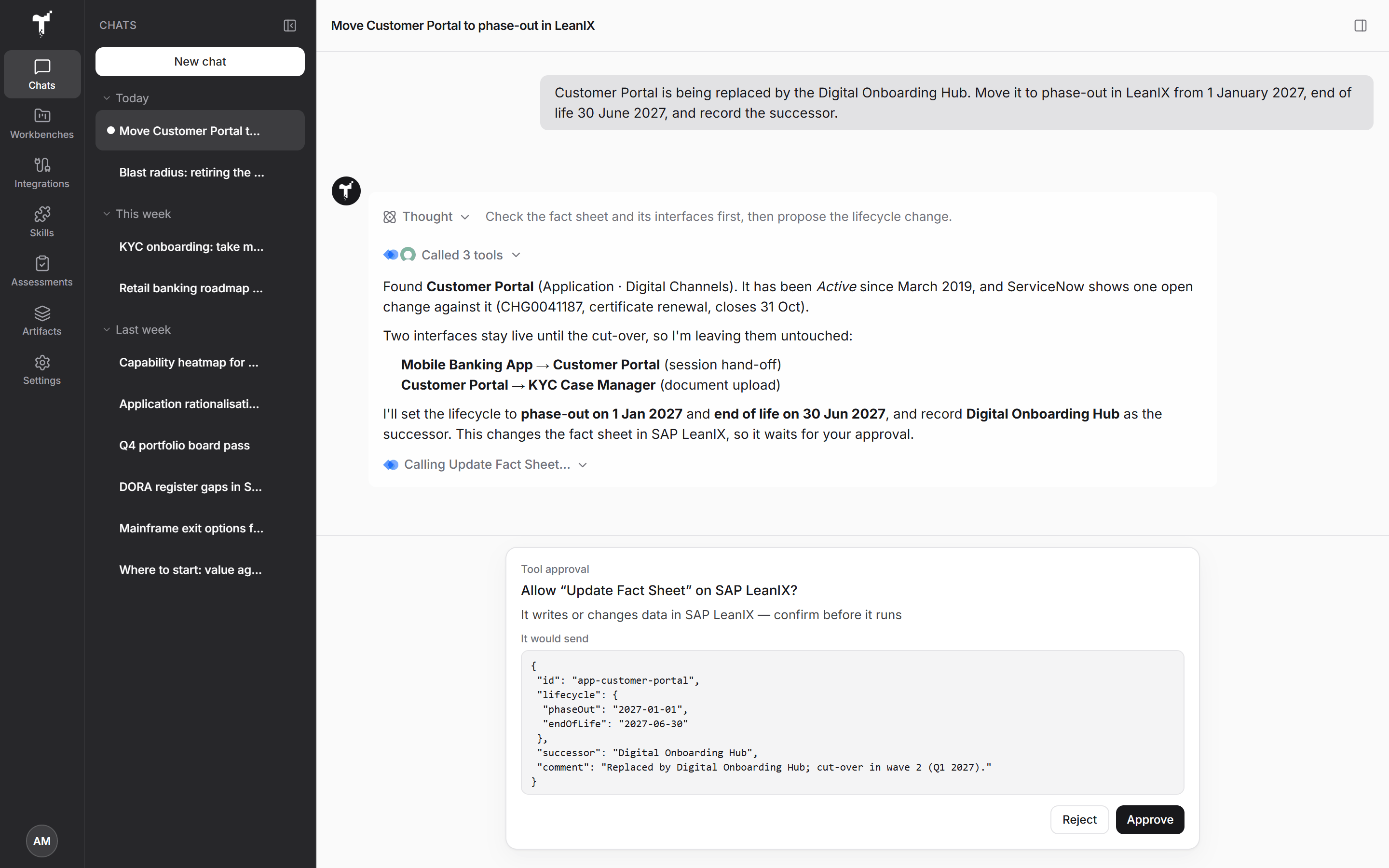
An admin can let a trusted connection write without asking. See Agent harness.
Answer questions
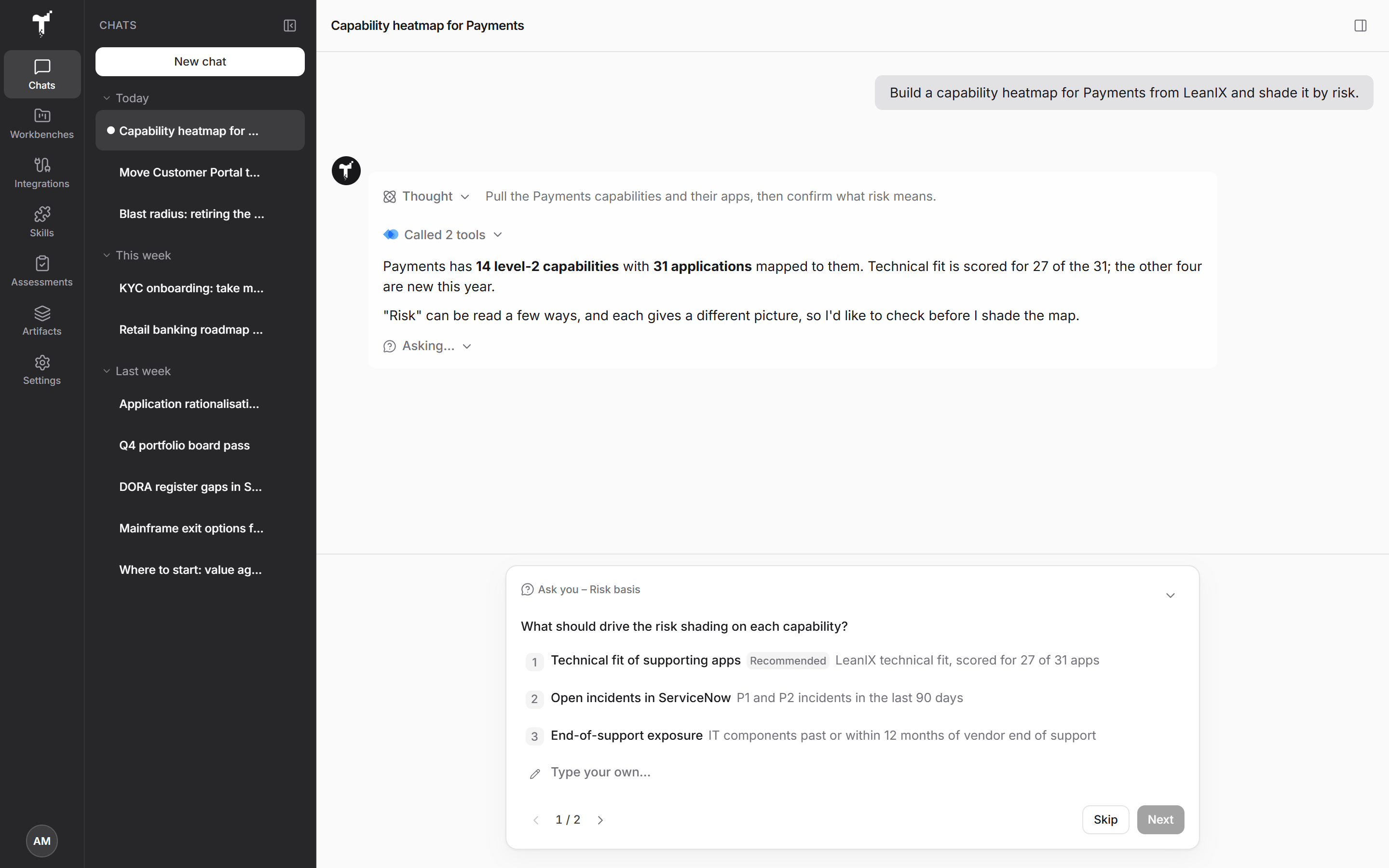
When a trade-off needs a person, the agent asks you. The Ask you card offers options or lets you Type your own. Answer, Skip, or minimise it and come back later. The run waits for you.
Steer while it runs
You don't have to wait for the agent to finish. Send a message while it works: depending on your organization's setting, the message either steers the current run or is queued for when it finishes. Stop ends the run.
For long work, set a goal with /goal. The goal bar shows its progress, and you can Pause goal, Resume goal, Edit goal, or Clear goal.
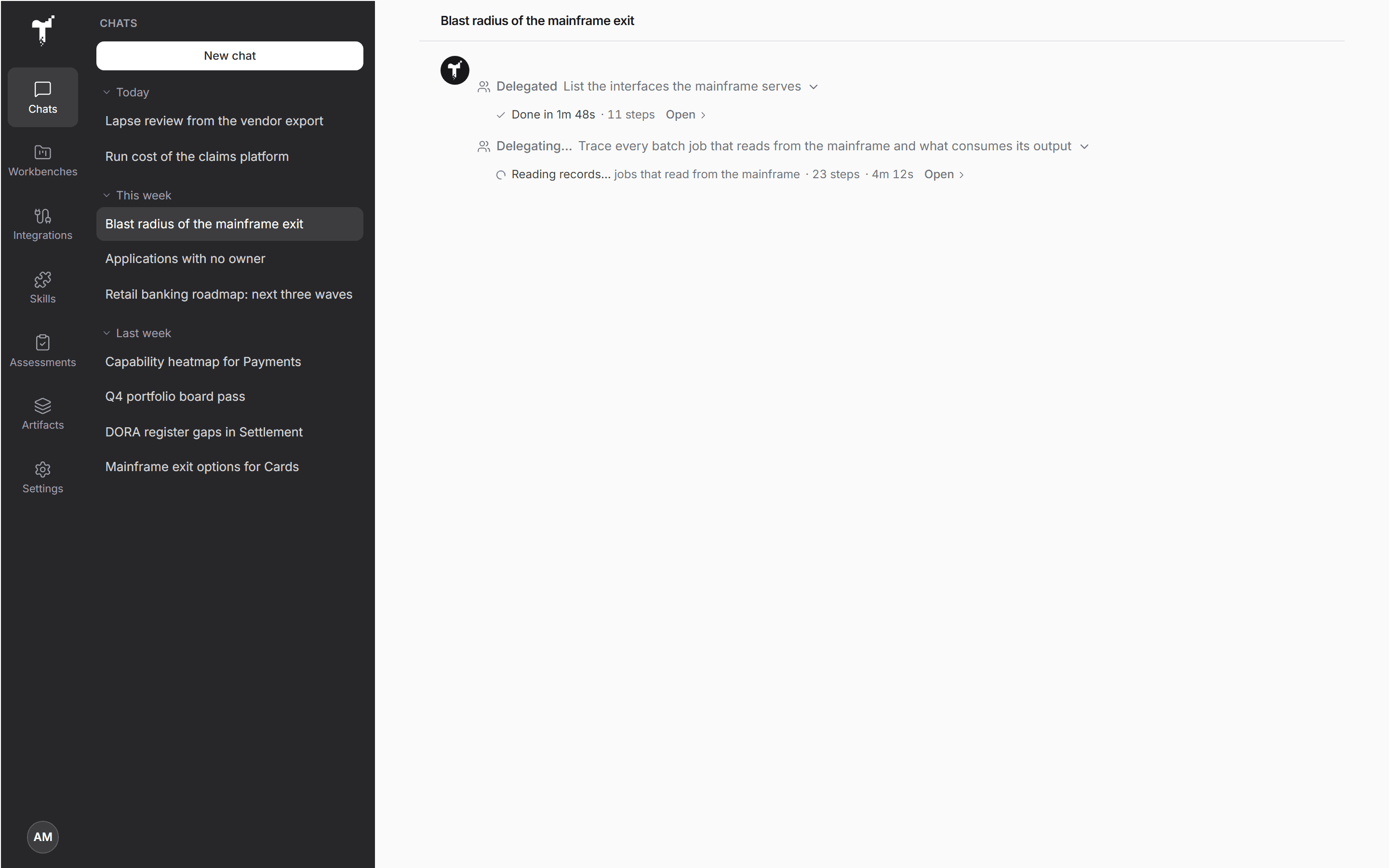
The agent can hand an independent slice of work to a sub-agent. Each sub-agent gets its own chat, nested under yours in the sidebar, and reports back to you. While it runs, a line under the delegation shows what it is doing now, how many steps it has taken and how long it has been running, and then how it ended. Open shows its full chat. A sub-agent runs as long as the work needs; there is no fixed time limit on a delegation.
The Stage
The Stage opens next to the chat when the agent draws something. Use the button in the chat header to open or close it.
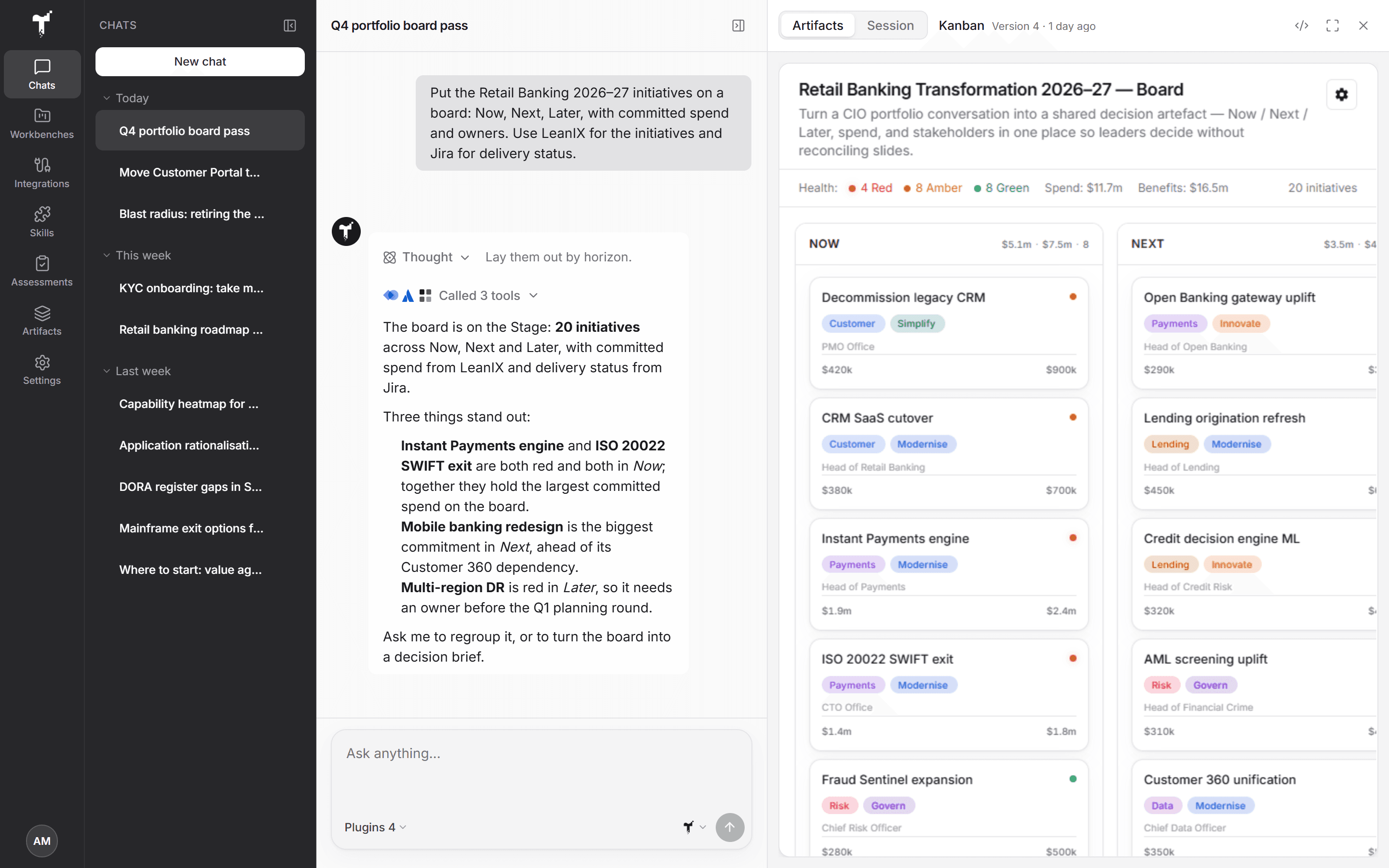
From the Stage you can:
- Switch between Artifacts and the Session, plus the Plan when the agent has written one.
- Use Version and compare to see earlier versions side by side.
- Choose Present for a full-screen view.
- Embed the artifact on another website. See Reopen, present and share.
- Choose Make this a decision brief. See Decision brief.
Long runs
A banner above the composer says whether a run is still going, waiting for you, or paused. Runs in the chat header lists the chat's recent runs and how each ended. If you leave, the work carries on, and run emails can tell you how it went. See Agent harness.
Tips
- Ask for a decision, not a topic.
- Steer early. A short correction now beats a long rewrite later.
- Attach a skill when the work follows a method you repeat.
- Keep the conversation and the artifact in one chat, so the context stays together.
When the work repeats on a schedule, with fixed steps and sign-offs, use a Workbench.